
Tenant Configuration
After completing federation and provisioning, there are a few recommended configurations in your Microsoft Entra ID tenant to ensure the best experience with BlokSec passwordless authentication.
Optional: block legacy authentication
Section titled “Optional: block legacy authentication”BlokSec sign-in doesn’t require this, but blocking legacy authentication is recommended security practice. Legacy protocols (SMTP basic auth, POP, IMAP, Exchange ActiveSync) send a username and password directly instead of using browser-based sign-in, so they can’t use BlokSec and will fail for federated users anyway. Blocking them stops those confusing failures and closes off a credential-based attack path.
Blocking legacy authentication with a Conditional Access policy requires Microsoft Entra ID P1 or higher. See Microsoft’s guide to blocking legacy authentication with Conditional Access. Security defaults also block legacy authentication, but they force Microsoft Authenticator registration (see Security defaults below), so if you turn them off without Entra ID P1, legacy authentication is no longer blocked.
MFA behavior for federated domains
Section titled “MFA behavior for federated domains”BlokSec performs multi-factor authentication as part of the passwordless flow (device biometrics + the approved device itself), so your tenant should accept MFA performed by BlokSec rather than requiring Microsoft’s own MFA on top.
The BlokSec federation wizard configures this for you: it federates your domain with the federated IdP MFA behavior set to acceptIfMfaDoneByFederatedIdp. There’s no setting for this in the Entra admin center, so to verify it, use Graph Explorer or PowerShell with the Domain-InternalFederation.Read.All permission.
Graph Explorer: send a GET request to the following URL, replacing yourcompany.com with your federated domain, and check that federatedIdpMfaBehavior is acceptIfMfaDoneByFederatedIdp:
https://graph.microsoft.com/v1.0/domains/yourcompany.com/federationConfiguration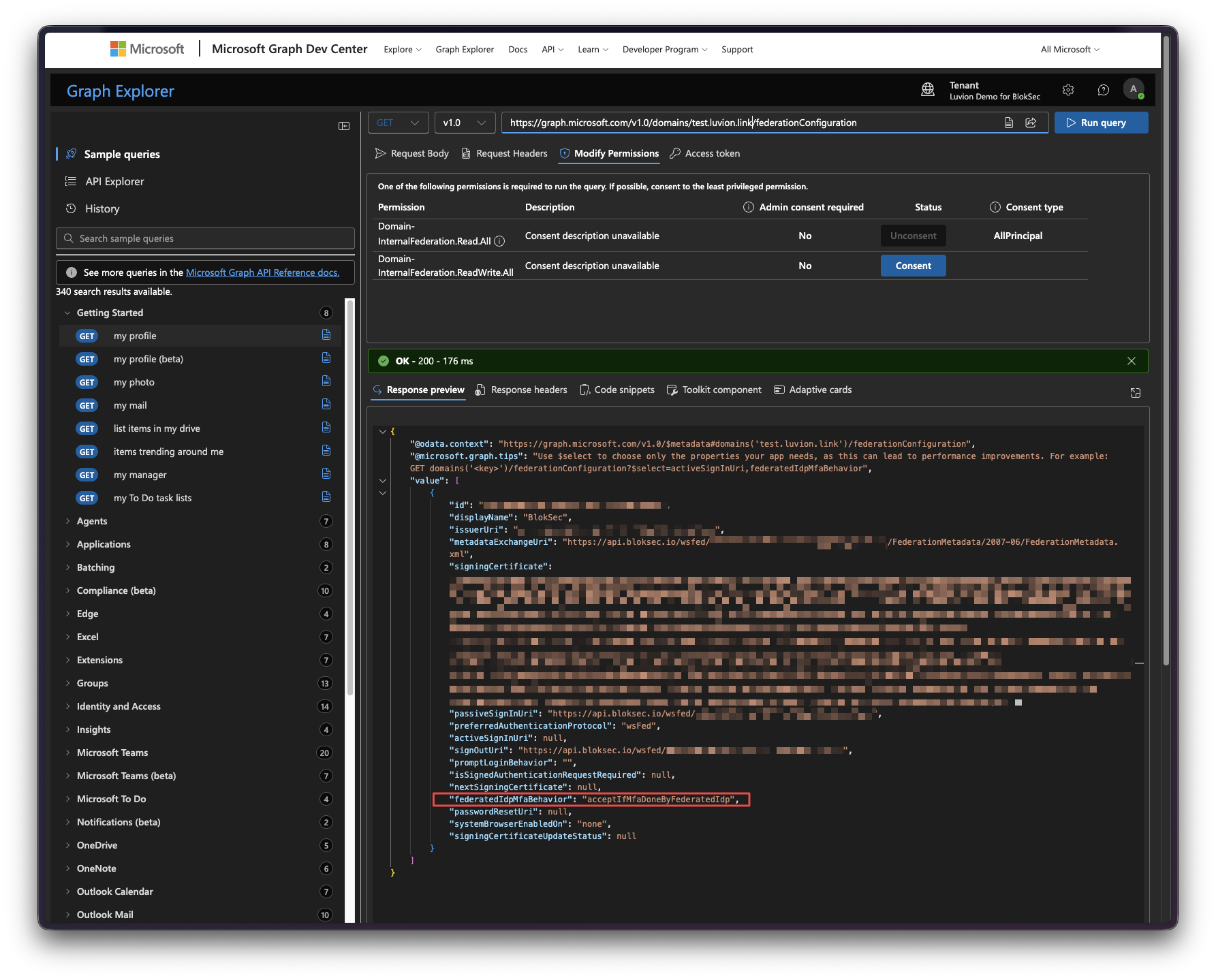
PowerShell:
Connect-MgGraph -Scopes "Domain-InternalFederation.Read.All"Get-MgDomainFederationConfiguration -DomainId "yourcompany.com" | Select FederatedIdpMfaBehaviorStop Microsoft Authenticator registration prompts
Section titled “Stop Microsoft Authenticator registration prompts”BlokSec signs users in with multi-factor authentication and Entra is configured to accept it. However, some tenant settings force Microsoft Authenticator registration regardless of how a user signed in, so users get enrolled twice and are left unsure which authenticator to use. Changing these settings does not leave you without multi-factor authentication. It leaves BlokSec providing it.
The BlokSec federation wizard checks for both settings below after federation and warns you if either is turned on.
Registration campaign
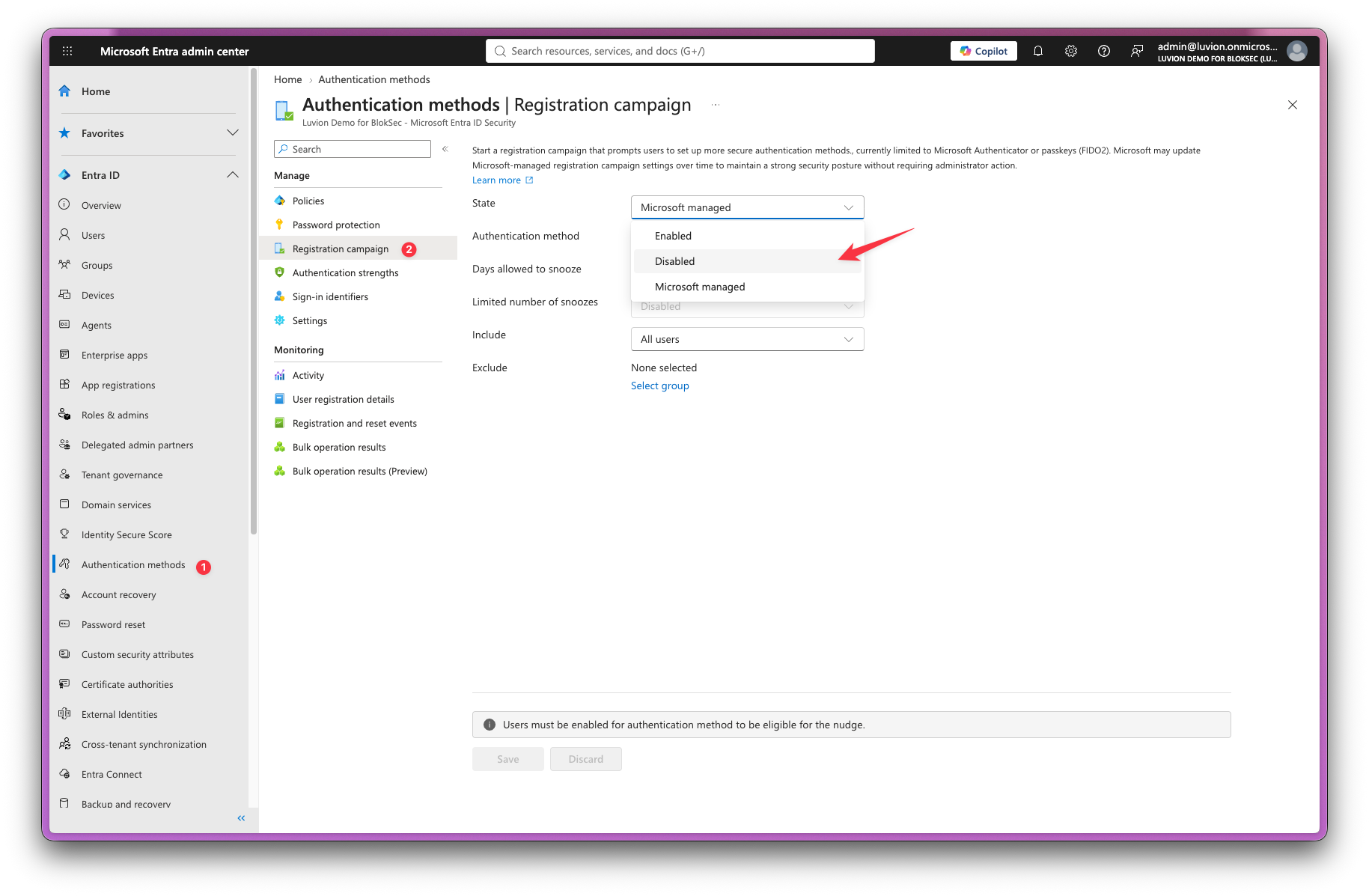
Section titled “Registration campaign”The Authenticator registration campaign nudges users to install and register Microsoft Authenticator during sign-in. Microsoft has been switching it on for tenants where it’s set to Microsoft managed. With BlokSec as the identity provider, that prompt is redundant.
- In the Entra admin center, go to Entra > Authentication methods > Registration campaign
- Set State to Disabled, or exclude your federated users from the campaign
Security defaults
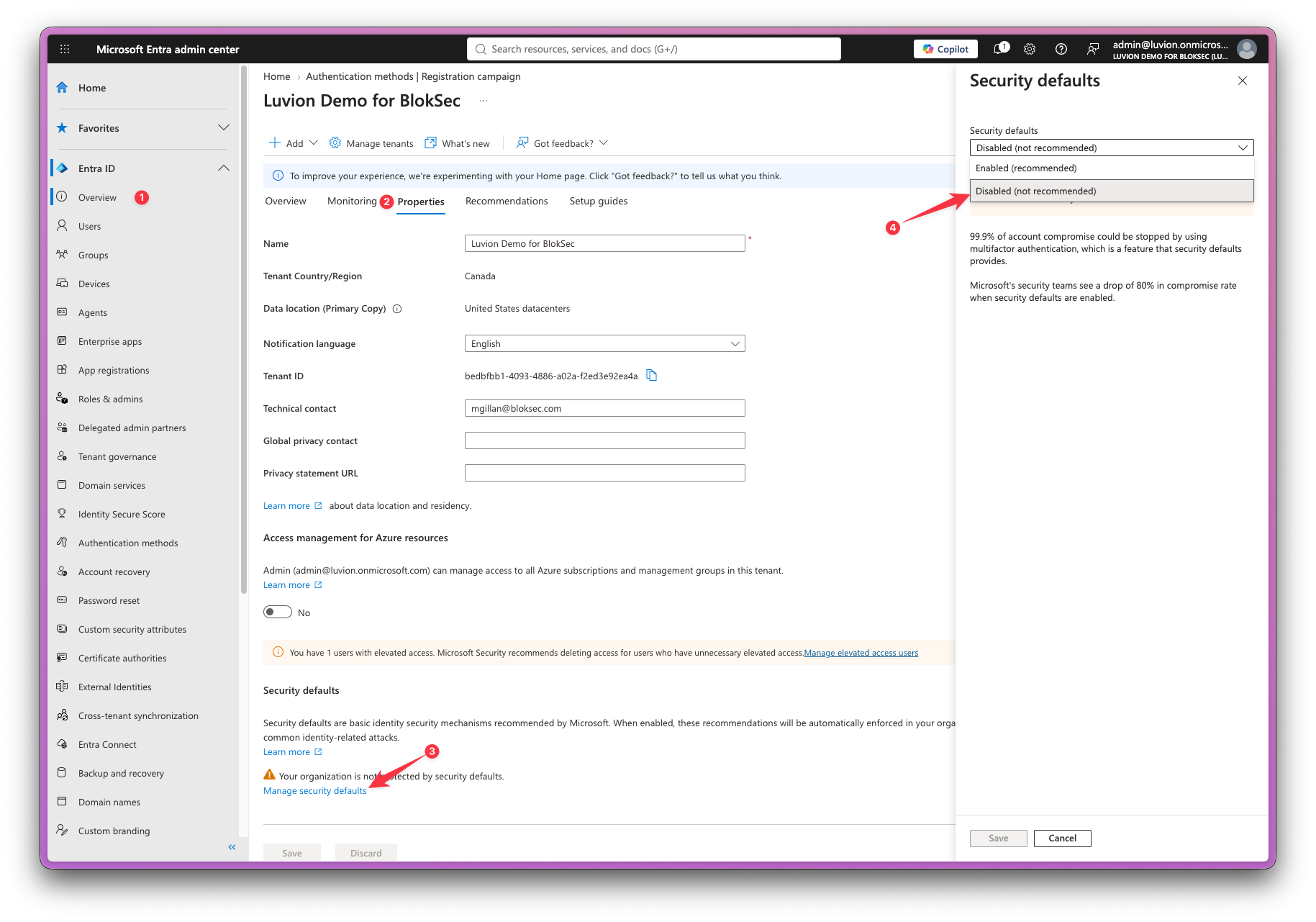
Section titled “Security defaults”When security defaults are enabled, every user is prompted to register Microsoft Authenticator on their next sign-in, even though BlokSec already signed them in with multi-factor authentication.
- In the Entra admin center, go to Overview > Properties > Manage security defaults
- Set Security defaults to Disabled
Session and token lifetime
Section titled “Session and token lifetime”Microsoft 365 has its own session lifetime policies that work alongside BlokSec’s session duration:
- BlokSec session duration — How long the user’s authentication with BlokSec is valid (configured in the application settings)
- Microsoft token lifetime — How long the M365 access/refresh tokens are valid
For the smoothest user experience, set the BlokSec session duration to be equal to or longer than your Microsoft token lifetime. This prevents users from being asked to re-authenticate with BlokSec before their M365 session has expired.
The default BlokSec session duration of 8 hours works well with Microsoft’s default token lifetimes.
Verify the configuration
Section titled “Verify the configuration”After completing all the tenant configuration steps, verify the end-to-end flow:
- Open a private/incognito browser window
- Go to https://m365.cloud.microsoft and click Sign in
- Enter a federated user’s full UPN (e.g.,
jane@yourcompany.com) - You should be redirected to BlokSec’s sign-in page
- Approve the sign-in on the user’s phone
- You should be signed in to Microsoft 365 without entering a password
Test with a few different applications (Outlook web, Teams web, SharePoint) to confirm everything works as expected.
Once browser sign-in works, you can extend the same federation to the Windows lock screen so users sign in to their Entra-joined devices with BlokSec. See Windows Sign-In.