
Subdomain Federation
Microsoft federates authentication by domain, not by user. Once a domain is federated, every user in that domain (that is, every user whose UPN suffix matches the domain) is redirected to BlokSec to sign in. This all-or-nothing behavior is a Microsoft limitation, not something BlokSec can control. To test BlokSec with a subset of users first, you can federate a separate subdomain and move only your test users onto it, leaving everyone else on the root domain untouched.
These instructions walk through the process of adding a new subdomain to Microsoft Entra that can be used to test BlokSec authentication with a subset of users before rolling it out more broadly. For these instructions, we will use the fictitious company “Luvion” whose primary domain is luvion.link. We will add the subdomain test.luvion.link for this test. In your own tenant you can use any subdomain you like for testing purposes.
Prerequisites
Section titled “Prerequisites”- Domain Name Administrator (or Global Administrator) access to your Microsoft Entra ID tenant. Domain Name Administrator is the least-privileged role that can add and manage domains.
- The root domain (
luvion.linkin this example) already added and verified in the same tenant.
Add the subdomain
Section titled “Add the subdomain”- Sign in to the Microsoft Entra admin center.
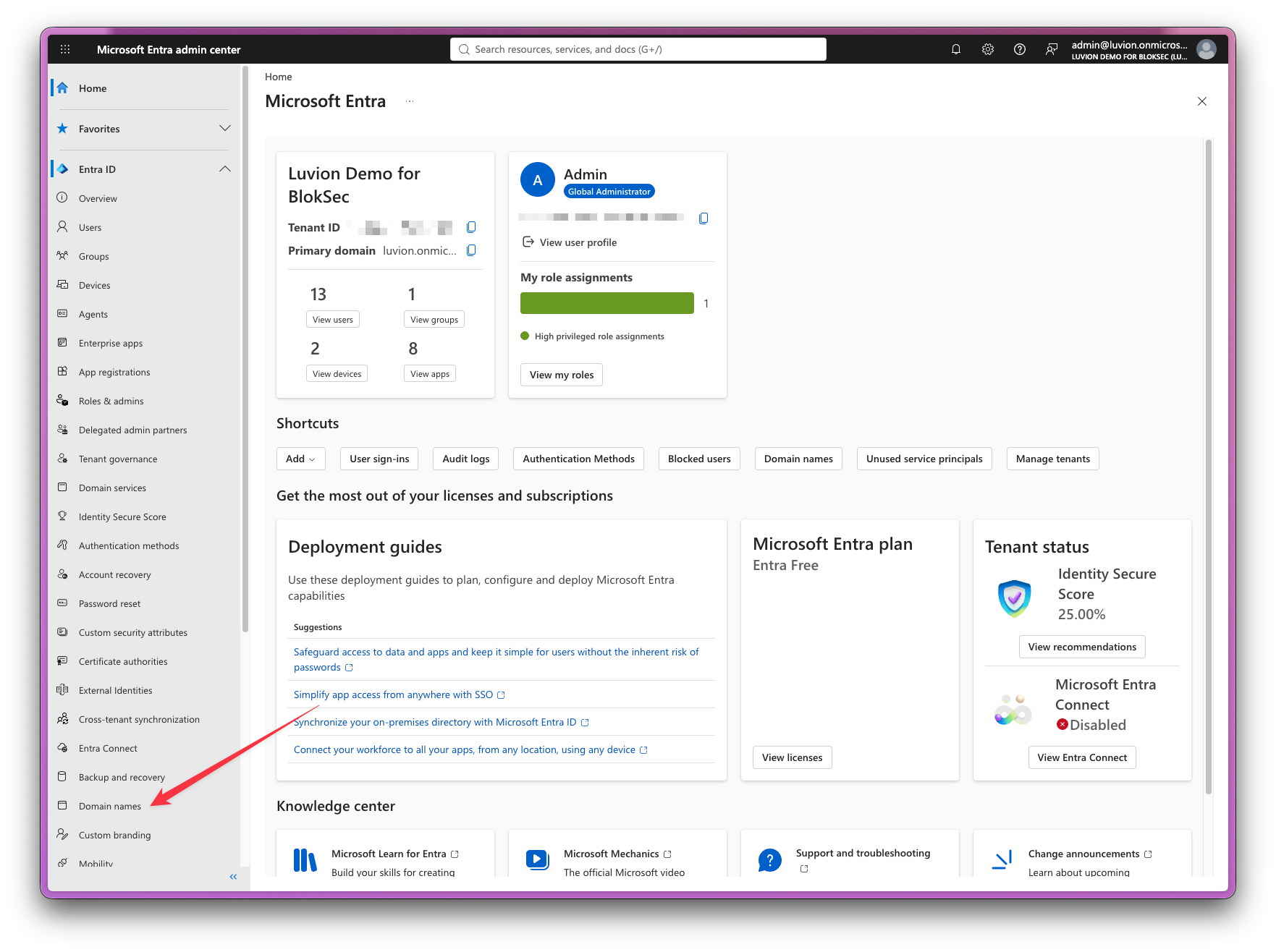
- Navigate to Domain names in the left-hand menu.
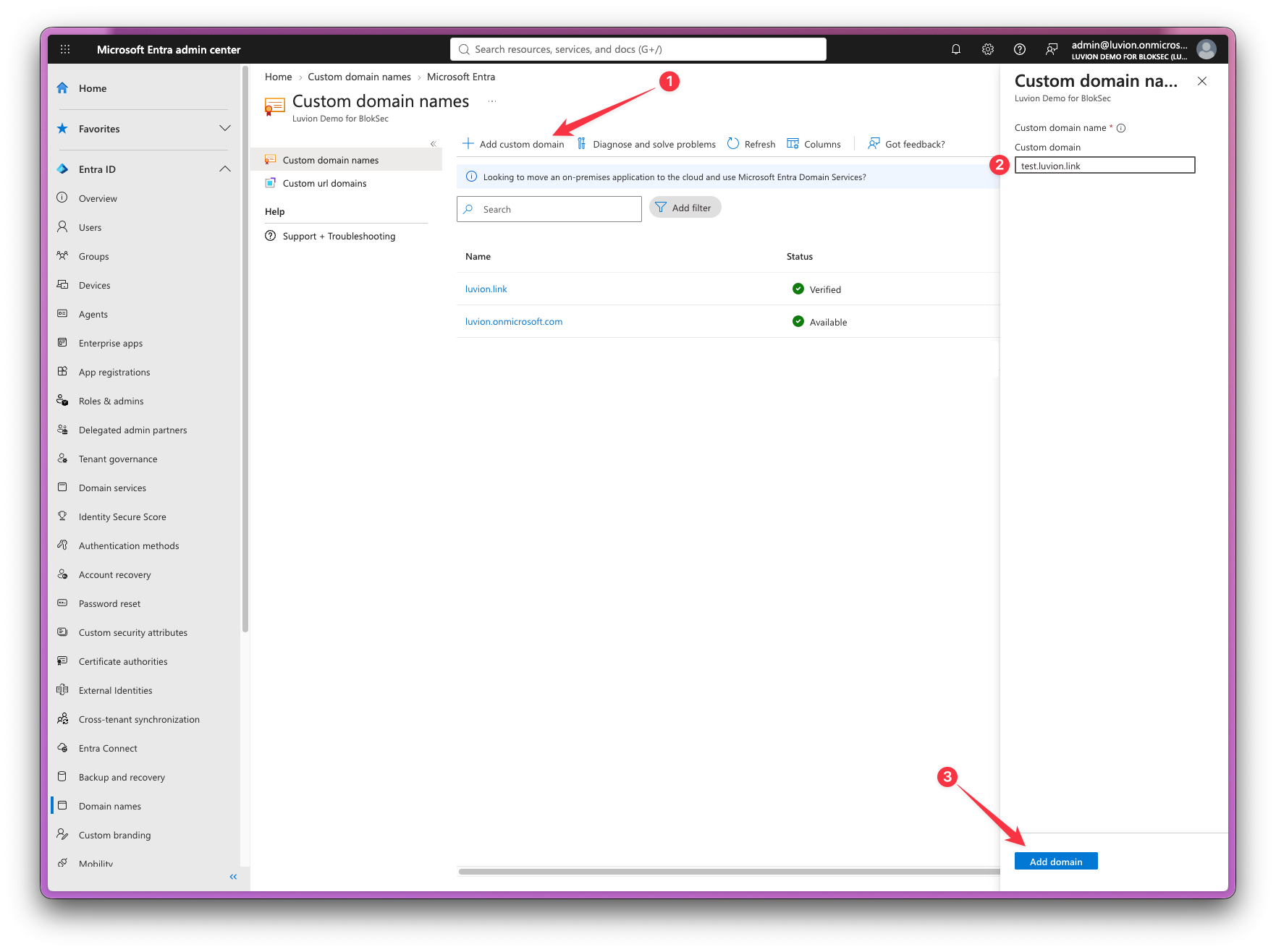
- Click Add custom domain (1).
- Enter a value for the custom domain (2). For this example, we will enter
test.luvion.link. Click Add domain (3).
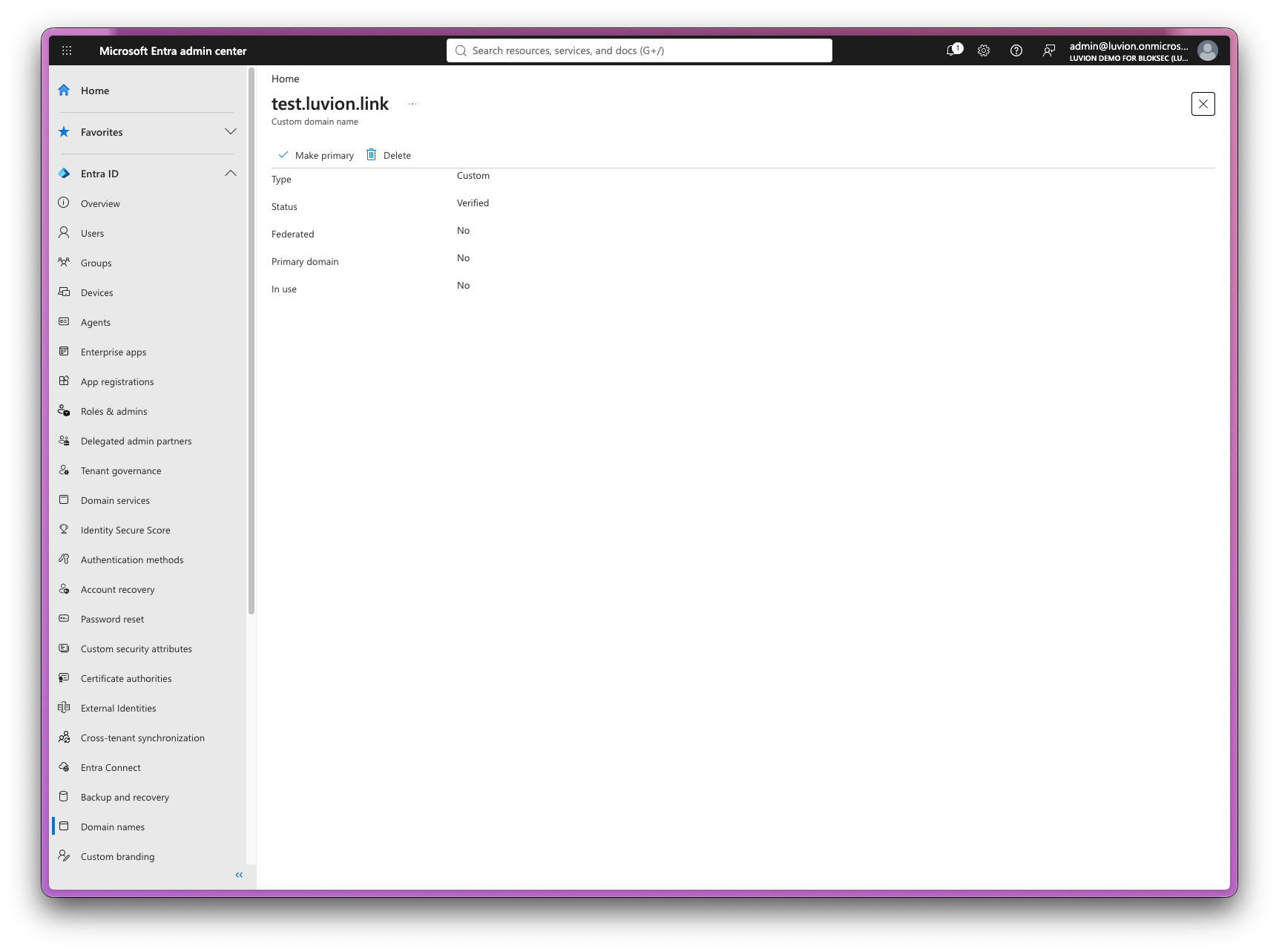
- Upon successful creation, the Entra admin center shows a confirmation.
Promote the subdomain to a root domain
Section titled “Promote the subdomain to a root domain”A new subdomain inherits its authentication settings from its root domain, so Microsoft won’t let you federate it on its own. If you try, the BlokSec federation wizard fails with Subdomain cannot be federated.
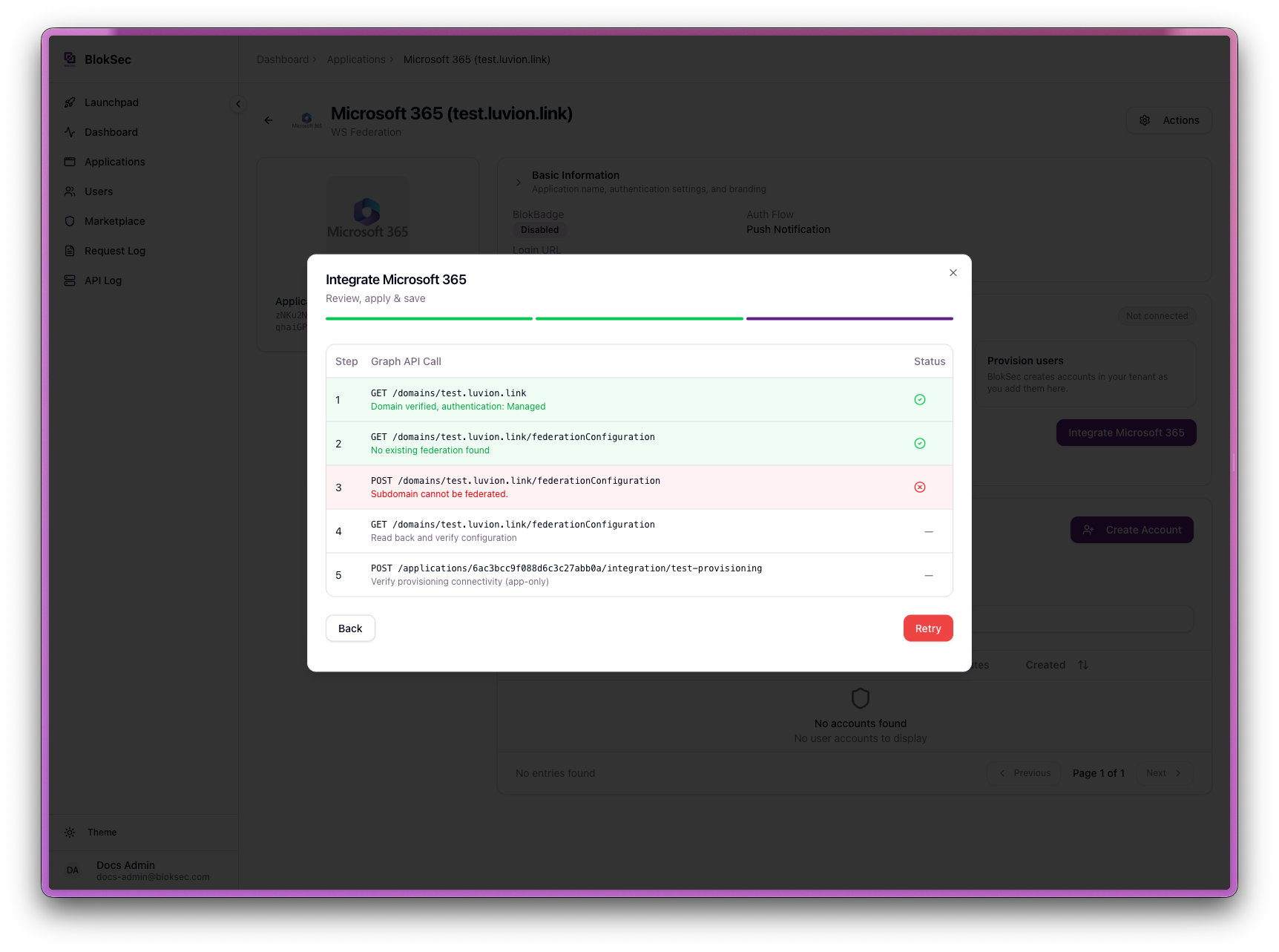
To fix this, promote the subdomain to a root domain. This only changes how Entra treats test.luvion.link. It doesn’t make it your primary domain, and it doesn’t affect luvion.link or its users.
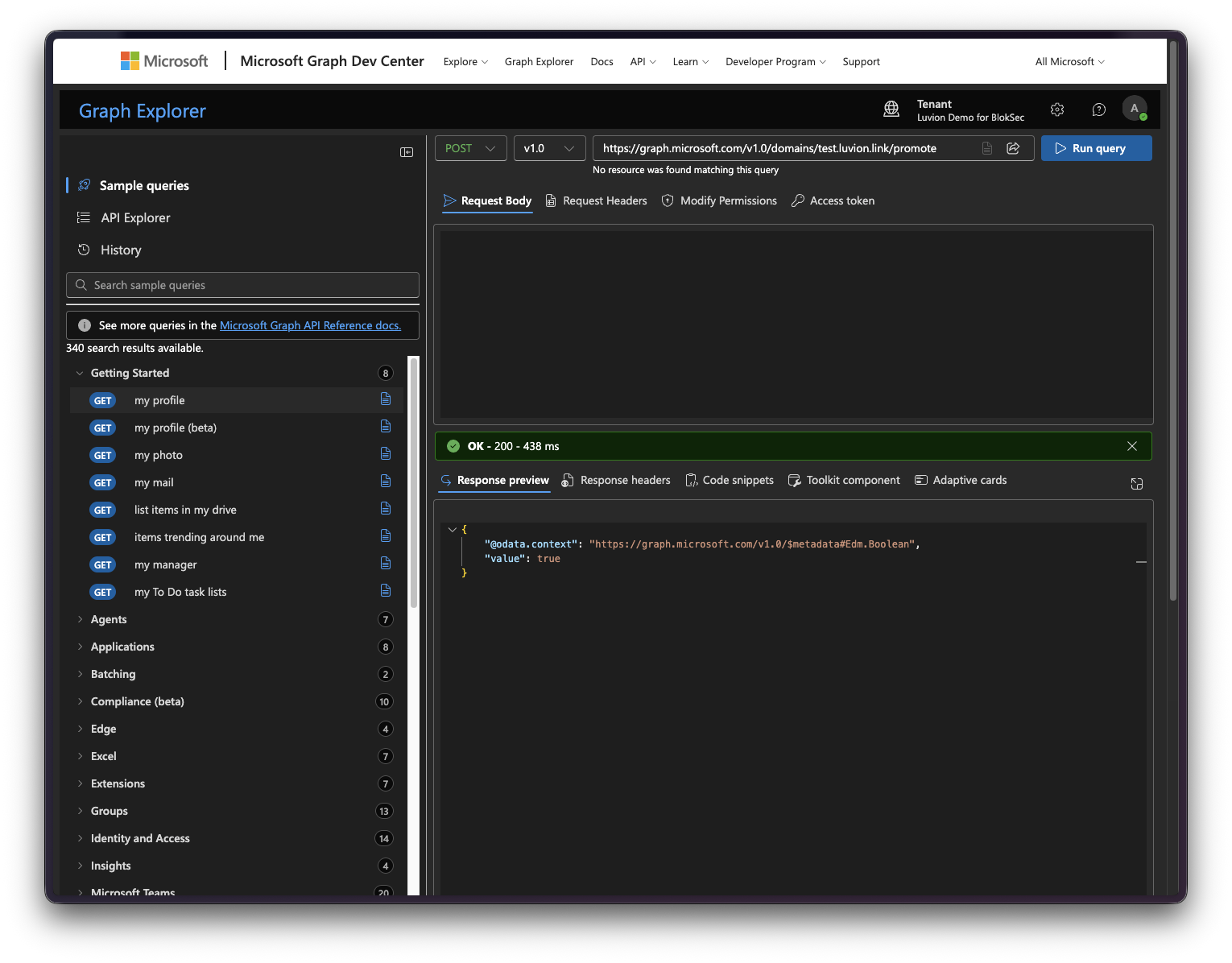
The Entra admin center doesn’t have an option for this, so it’s done with a Microsoft Graph call. You can use Graph Explorer or PowerShell, signed in with the same administrator account. The call needs the Domain.ReadWrite.All permission.
Graph Explorer: sign in, then send a POST request with an empty body to:
https://graph.microsoft.com/v1.0/domains/test.luvion.link/promotePowerShell:
Connect-MgGraph -Scopes "Domain.ReadWrite.All"Invoke-MgGraphRequest -Method POST -Uri "https://graph.microsoft.com/v1.0/domains/test.luvion.link/promote"A successful call returns { "value": true }.
Federate the subdomain with BlokSec
Section titled “Federate the subdomain with BlokSec”Follow the Federation guide, and choose test.luvion.link when the wizard asks you to select your domain. Only users whose UPN is on test.luvion.link will sign in with BlokSec. Everyone on luvion.link keeps signing in the way they do today.
Move test users to the subdomain
Section titled “Move test users to the subdomain”To have an existing user sign in with BlokSec, change the domain in their User Principal Name (UPN) to the federated subdomain. Repeat these steps for each user you want to include in the test.
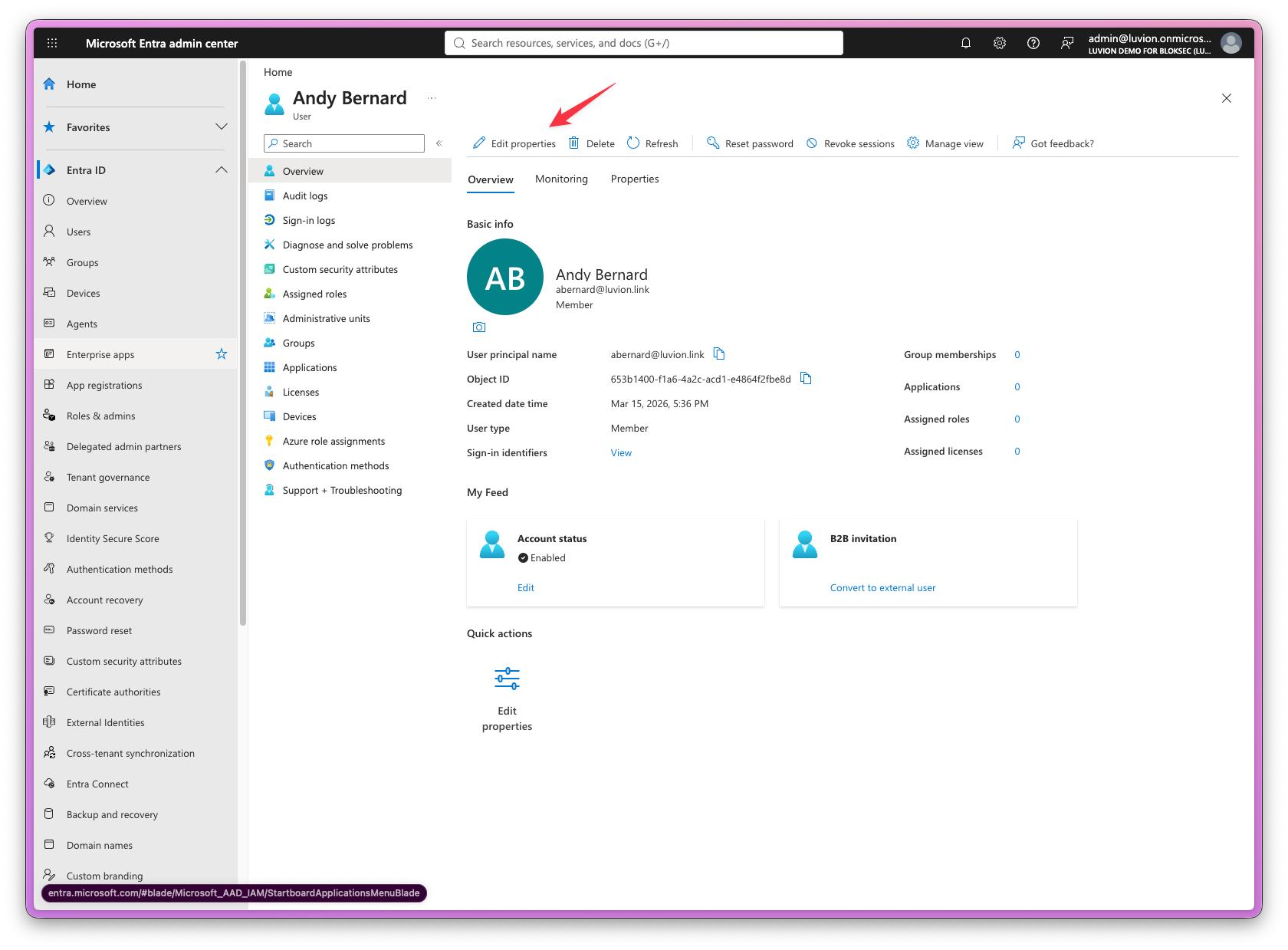
- In the Microsoft Entra admin center, go to Users > All users and open the user you want to move.
- On the user’s Properties tab, click Edit properties.
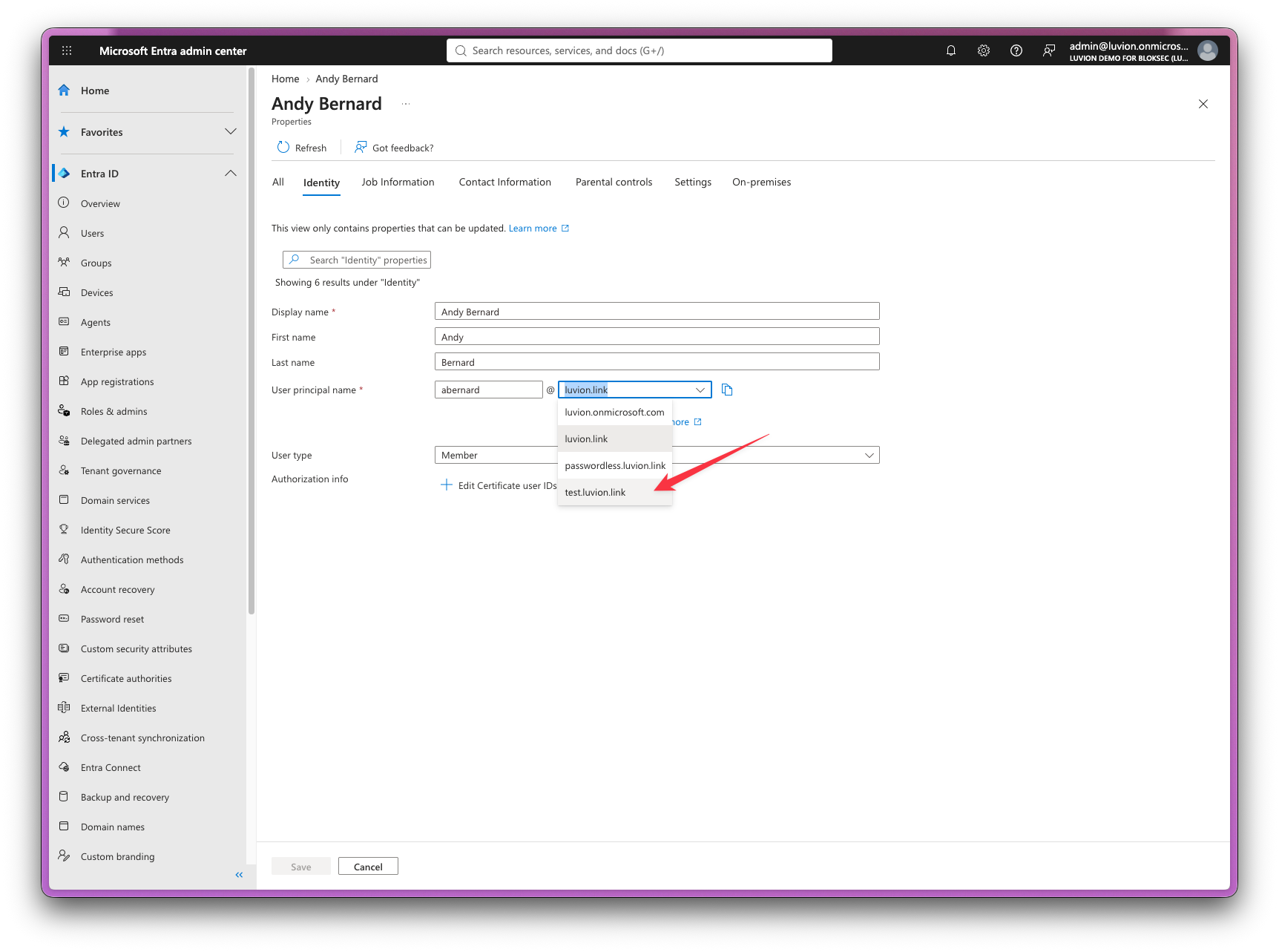
- In the User principal name field, open the domain drop-down and select
test.luvion.link. Click Save.
Test sign-in
Section titled “Test sign-in”Once a test user has a matching BlokSec account, check that they’re sent to BlokSec:
- Open a private/incognito browser window
- Go to https://m365.cloud.microsoft and click Sign in
- Enter the test user’s full UPN (e.g.,
jane@test.luvion.link) - You should be redirected to BlokSec’s sign-in page. After approving the sign-in, you’re returned to Microsoft 365 signed in.