
Microsoft 365
Integrating BlokSec with Microsoft 365 replaces password-based sign-in with passwordless authentication for all your M365 applications — Outlook, Teams, SharePoint, OneDrive, and more.
How it works
Section titled “How it works”BlokSec acts as a federated identity provider for your Microsoft Entra ID tenant. When a user signs in to any Microsoft 365 application, Entra ID redirects the authentication to BlokSec. The user approves the sign-in on their phone (via push notification or QR code scan), and BlokSec issues a security token back to Microsoft that grants access.
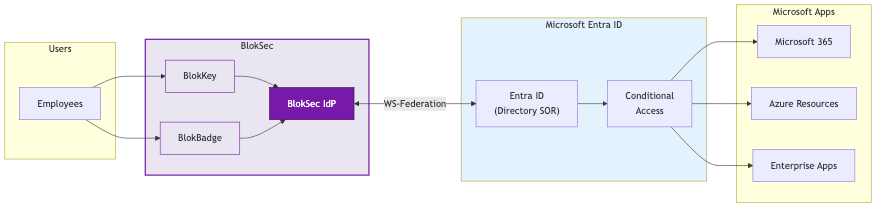
The integration uses the WS-Federation protocol, which is the standard for Microsoft 365 federated authentication. This is the same protocol used by AD FS and other enterprise identity providers.
What changes, what stays the same
Section titled “What changes, what stays the same”BlokSec is designed to enhance your Microsoft identity stack, not replace it.
| What changes | What stays the same |
|---|---|
| Authentication upgrades to passwordless | Entra ID remains your directory (users, groups, licenses) |
| Frontline workers get coverage they didn’t have before | Conditional Access policies still apply |
| Audit trail gets stronger with cryptographic signatures | All app integrations and SSO remain intact |
| Phishing-resistant by design — no codes to intercept | No Entra ID licensing changes required |
Authentication methods
Section titled “Authentication methods”BlokSec provides two authentication methods, covering both office and frontline workers:
BlokKey — for workers with smartphones. The BlokSec app receives a push notification or displays a QR code. The user authenticates with their phone’s biometrics (Face ID, fingerprint, or device PIN) to approve the sign-in. Private keys stay in the device’s secure hardware and never leave.
BlokBadge — for frontline workers without smartphones. A printed QR badge combined with a PIN provides passwordless authentication at shared workstations, kiosks, and terminals. No personal device required. The cryptographic key is split between the badge and the server — both halves plus the user’s PIN are required to authenticate.
Setup steps
Section titled “Setup steps”Application Setup
Create the Microsoft 365 application in the BlokSec admin console.Federation
Federate your domain so Microsoft 365 uses BlokSec for authentication.Provisioning
Invite users and provision their accounts in BlokSec.Tenant Configuration
Configure your Microsoft Entra ID tenant to work with passwordless authentication.Prerequisites
Section titled “Prerequisites”Before you begin, make sure you have:
- A BlokSec admin account with access to the BlokSec admin console
- Global Administrator (or at minimum, Domain Administrator) access to your Microsoft Entra ID tenant
- A verified custom domain in your Microsoft 365 tenant (e.g.,
yourcompany.com) — the default.onmicrosoft.comdomain cannot be federated - At least one user with the BlokSec authenticator app installed, to test the integration